Helping ambitious WFH dads protect both deep work and family time. Get the free newsletter helping 700+ dads build a workday that fits inside their life, not the other way around. PLUS: Access my free WFH Dads Productivity Playbook when you sign up.
Share
The 1-week time tracking experiment 📝
Published about 5 hours ago • 8 min read
👋 Hey Reader!
Today we're doing a deep dive into the world of time tracking! Here's what I've got for you:
The 1-week time tracking experiment 📝
Why time tracking is hard
The fix
Filling out your log
AI prompt to analyze it
Other tracking options
Recommendation of the week - Insights from 40 dad interviews
Let's get into it.
The 1-week time tracking experiment 📝
A few years ago, I decided to start tracking my work hours. My employer didn't require it, but I was curious where exactly my time was going, particularly in regards to email and Slack, given how much of a time suck those can be.
I figured email & Slack were taking maybe 10-15% of my time.
But when I actually tracked my time for several weeks, I saw email & Slack were taking up more than 30% of my time 😳!
I don't think I'm alone in being terrible at estimating exactly how I was spending my work hours.
That's why I recommend every work from home dad take inventory of how he's spending his time for at least a week. It's particularly helpful if you find yourself struggling with balancing getting work done and being at home with the family.
You're likely spending way more hours on low-impact work than you realize, which leads you to working MORE hours than necessary in order to catch up (like nights & weekends).
But you can't do anything about it until you SEE exactly where those hours are going.
Here's how to run your own time tracking experiment.
Why it's hard
There's three big reasons why people don't track their time.
Remembering to do it When this isn't really a habit, you start working and you forget to track that task, even when you intend to.
Friction to do it There's a lot of different ways that you can actually track your time and so whether it's opening up a spreadsheet or opening up an app, that adds friction to actually making it happen.
Overlapping of tasks The more fragmented your work is, the harder it is to track the time. For example, I may start working on some strategy in an AI chat, but then AI starts to do some research so I leave that task. Then I jump over to edit a thumbnail for our YouTube channel, and in the middle of that, I get a Slack ping that I expect to only take a few minutes (but takes 22 min) to respond to. Then I come back to the thumbnail, and finish that up. And then I finally come back to the AI project. I've had three different tasks with overlapping start and end times and so I don't even know exactly how to track that.
The fix
The solution is to use a printed physical log that you keep and notate what you're working on.
Having it on your desk reduces the friction to completing it AND helps you remember to do it given the constant visibility.
It can even help with overlapping tasks because every time you write down what you're working on, you've made a small commitment to yourself that THAT is your current focus (not to mention the task switching is destroying your focus).
It makes you NOT want to work on anything else because that's not what you've logged.
You'll still find instances where you do have overlapping tasks. My suggestion is to write down the main task that you're working on in that moment and try to stick to it when you can.
Filling out your log
For the spreadsheet, I recommend the following headings:
Activity column:
I think of this in terms of the category of work I'm doing. These will vary based on your role. Here are the categories I've created for my role as a social media video specialist:
Meeting
Email and Slack catch-up
Prep for the day
Professional development
Project management
Feedback for others
Strategizing
Creating SOPs
Scheduling content
Drafting captions or descriptions
Creating thumbnails or graphics
Scripting
Filming
Editing
Other logistics (kind of my catch-all for anything leftover)
Duration column:
You can manually calculate that yourself if you'd like, or just leave it blank and have AI calculate it later on when it does an analysis of your time tracking.
Notes / tag:
If there's a particular project that I'm working on, I'll put it in there.
So, for example, I may be preparing for a big Microsoft conference. That will involve meetings, emails, strategizing, and feedback for others. And so all those different categories go under activity, and then the specific project ('Microsoft conference') would go under 'notes / tag'.
Here's a version I've created that you can print out:
While the paper spreadsheet does help eliminate the problems of remembering to track, the friction to track, and (somewhat) the overlapping of tasks, it doesn't help you visualize where all your time is going.
Luckily, we can use AI for that.
Below is a prompt that you can put into any AI tool that you use along with a photo of your time tracker.
It'll give you:
visuals of where your time is going
observations that may not be as obvious from looking at the list
one question to reflect on
I'd wait until you have at least a week of data. And be sure to conceal any sensitive information you may have included in your tracker.
ANALYSIS PROMPT:
I tracked my work time for a week. I’ve attached my log: a photo of my paper log, my spreadsheet, or an export from my time tracking app. Each row has a date, start time, stop time, activity and notes (or tags).
Please do the following. Keep it short and plain.
READ THE LOG Read every row. If a duration is blank, work it out from the start and stop times. If you can’t read something, tell me instead of guessing. Do NOT repeat my log back to me, except when I gave you a photo and some durations were blank or unreadable. In that case, show only a table of the rows you had to fix or couldn’t read.
TOTALS BY ACTIVITY Show a chart first, then a table below it (activity, time, share of total, with a total row). The chart should be an interactive chart with a toggle between a Bar view (the default) and a Pie view. Don’t show both at once. In the Pie view, fold the smallest slices into “Other” so there are no more than 8 slices.
TOTALS BY DAY Same format: an interactive Bar / Pie chart first, then a table below it (day, time, number of entries). End with my average hours worked per day.
TOTALS BY TAG If my log has notes or tags, do the same thing for them: an interactive Bar / Pie chart first, then a table below it (tag, time, share of all time, number of entries, plus a tagged total and an untagged row). Note that one tag can cover several activities. If there are no tags, skip this section.
OBSERVATIONS Give me 3 to 5 things I might not notice from a list of times. For example: which activities took more time than I’d expect, how often I switched tasks, when in the day I had my longest stretches of focused work, whether work spilled into mornings, evenings or weekends, and which tags took the most time.
ONE QUESTION Finish with one question I should think about before I change anything.
Check your math before you answer, and tell me about any overlapping or odd entries you noticed.
Other tracking options
There are a few other options that you could use as well:
Digital spreadsheet
A digital spreadsheet can help calculate and visualize some of the data as you go (instead of having to wait until the end).
The only downside to this is it may just be hiding in a tab on your computer (friction). But one option is to keep it open on a separate monitor so that you always can see it.
Here's a digital one I've created that you can copy:
These are great in that they provide multiple ways to start / stop your tracking (often providing both a desktop and mobile app) and can provide you with more robust reports. And many of them are beginning to offer automated AI time tracking, though I haven't experimented with that yet.
One of the simplest options I found is an app called Toggl.
The downside is that since it's built for corporate teams to track billing hours, it has a bunch of features you probably don't need and can feel bloated. There's also a learning curve with any app you choose.
An app is a good option if you want to continue time tracking beyond a month.
Worth the effort
Time tracking for even a week or two gives you such a clear insight into how you spend your working hours.
I've actually been tracking my time for several years now, even though my employers have never required it.
The constant visibility into where my time is actually going ensures I'm not working more hours than I intend and that I'm spending those hours on the work that actually has a higher impact.
Workday Reset
I'm currently building out a program called Workday Reset to help dads like yourself build a workday around your life (so you can stop working nights & weekends).
A core pillar of the program is doing this time tracking assessment over the course of a couple of weeks, and then taking that data and learning how to act on it.
The four-week program is set to start in January. If you'd be interested in joining the waitlist, which gives you first dibs in the program (as well as the lowest price available), you can click the button.
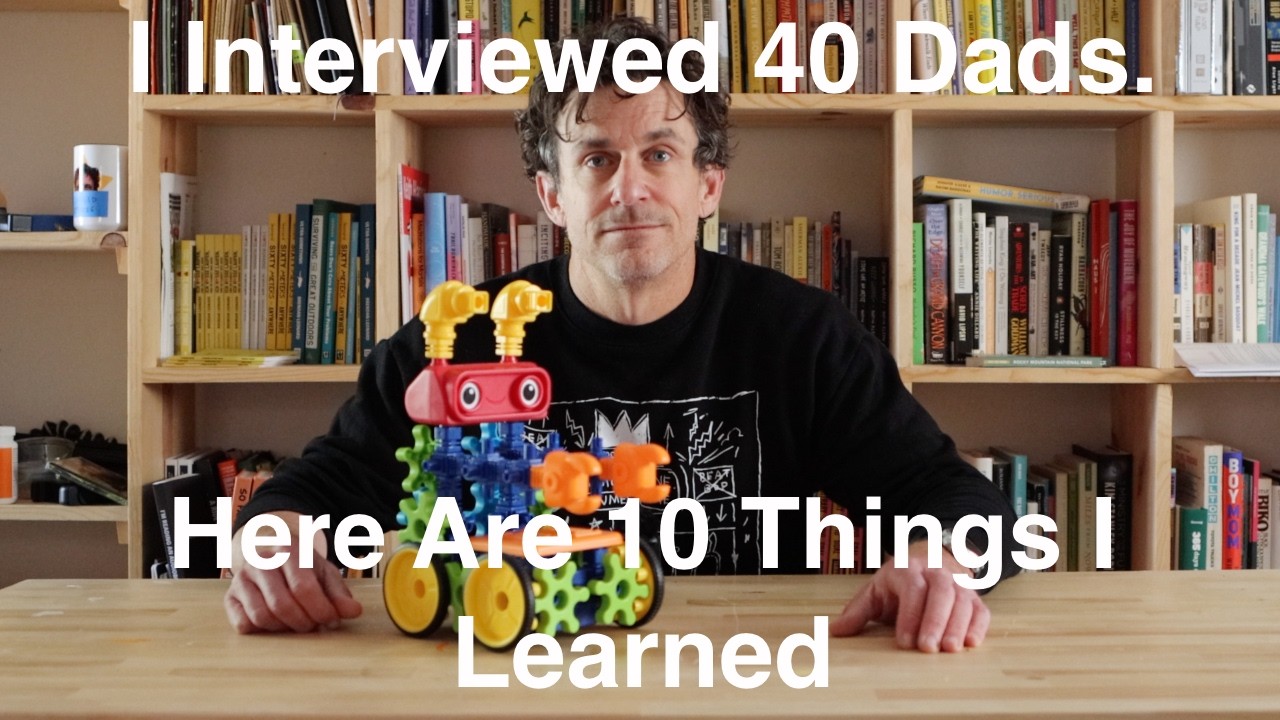
This video was a great 5-minute watch! The guy who made it only has a 4-year-old but interviewed 40 dads with kids of various ages and compiled them into these top 10 insights.
The one I resonated with most: you can't get time with your kids back.
Helping ambitious WFH dads protect both deep work and family time. Get the free newsletter helping 700+ dads build a workday that fits inside their life, not the other way around. PLUS: Access my free WFH Dads Productivity Playbook when you sign up.
👋 Hey Reader! Here’s what I’ve got for you in today’s issue of WFH Dads: → The first impression you make on a video call → Recommendation of the week - My productive home office tour Let's get into it. Video calls say more about you than you think If you find yourself getting on Zoom, Teams, or Google Meet calls with potential clients or higher ups at your company, you have to understand this: the way you show up on those calls leaves an impression. It goes beyond what you're wearing or how...
👋 Hey Reader! Here’s what I’ve got for you in today’s issue of WFH Dads: → Finding time for a hobby as a WFH dad → Recommendation of the week - A high-protein, low calorie Fruity Pebbles breakfast Let's get into it. Finding time for a hobby as a WFH dad I recently asked on Threads what hobbies fellow WFH dads had. Here were some of the answers: build a side-hustle* develop a game or app hit up the gym play music build LEGO sets attend their favorite team's games do woodworking write books...
👋 Hey Reader! Here’s what I’ve got for you in today’s issue of WFH Dads: → Are your kids using AI? → Recommendation of the week - My favorite AI podcast Let's get into it. Are your kids using AI? I recently listening to a podcast sharing some tragic stories of kids and teens who had developed relationships with AI companion bots that led to them taking their own lives. Really heartbreaking stuff. My kids are still pretty young but it got me thinking about what level of interaction I want them...